Copilot in SharePoint for Your Knowledge Base
Copilot in SharePoint began rolling out to general availability on September 30, 2026. What it does, what it costs, and where your pages still need a person.
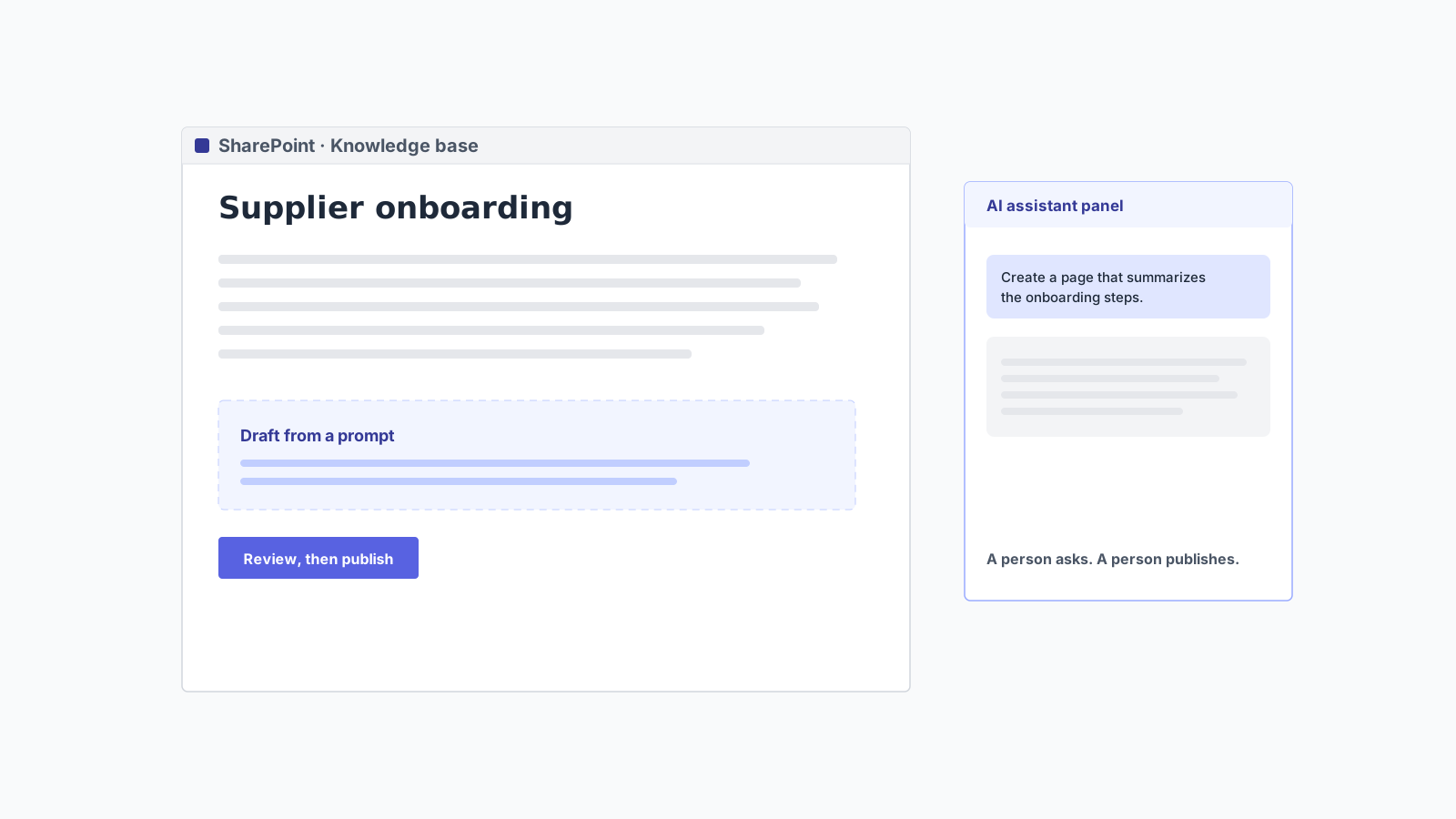
If your knowledge base lives in SharePoint, Microsoft has been adding AI directly where you write it. The feature now called Copilot in SharePoint spent its preview as Knowledge Agent. Microsoft’s own pages still use that name in places: the page-creation prerequisites mention “Knowledge Agent turned on for your site,” and the PowerShell settings that control it are still called KnowledgeAgentScope and friends. According to Microsoft’s own documentation, general availability began rolling out on September 30, 2026.
This article is a plain description of what it does for a knowledge base, based on Microsoft’s documentation as of November 2026: what is included, what costs extra, what admins need to change, and which parts of keeping a knowledge base current it does not claim to cover. It is not a review and not a comparison table. It is the map you need before deciding who does what.
What Copilot in SharePoint is
Microsoft describes it as bringing “agentic capabilities into SharePoint so teams can ask questions, run workflows, and create sites, pages, interactive reports, and Office files from their SharePoint content using natural language.”
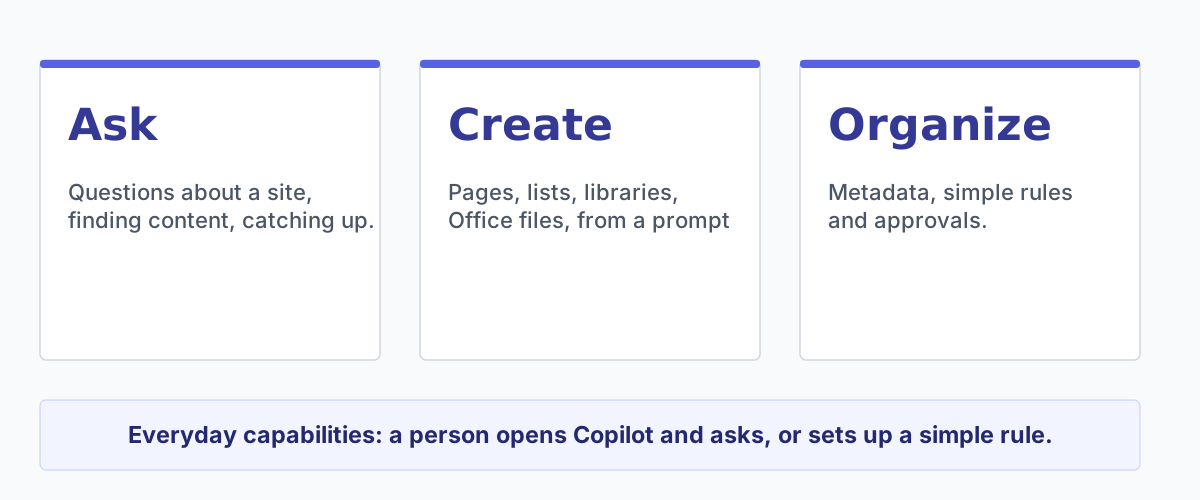
The everyday capabilities, grouped three ways.
In practice, for someone who maintains a knowledge base, that means three kinds of help:
- Asking: questions about the content of a site, finding documents, catching up on what changed.
- Creating: drafting pages, libraries, lists and Office files from a prompt.
- Organizing: filling in metadata, setting up simple rules and approvals, and getting suggestions on how to improve a site.
With the everyday capabilities included in the license, a person starts the work: someone opens Copilot and asks, or sets up a simple rule. The paid tier is for work that, in Microsoft’s words, “needs to run on its own, or has to keep pace as content arrives,” such as scheduled AI automations and real-time metadata Autofill. That distinction matters later in this article.
What is included and what uses Copilot Credits
At general availability Microsoft introduced what it calls a hybrid model. Everyday use is included with the Microsoft 365 Copilot license. Work at scale needs usage-based billing and consumes Copilot Credits.
| Included with the Microsoft 365 Copilot license | Requires Copilot Credits |
|---|---|
| Ask questions, find content, and catch up | Work across large or unbounded content sets |
| Create HTML, Word, Excel or PowerPoint files | Create entire sites and solutions |
| Create and edit pages, libraries or lists | Create and edit files, pages, libraries and lists at scale |
| Create simple rules, approvals and deterministic workflows | Build multistep AI workflows, including scheduled automations |
| Autofill metadata | Real-time Autofill metadata across a site |
| Rename and share individual files; create and manage skills | Generate and edit images; analytics on sites, pages, news and documents |
Source: Get started with Copilot in SharePoint, Microsoft Learn.
Two practical consequences. Every user needs a Microsoft 365 Copilot license to use it at all. And if your knowledge managers plan to reorganize a large site in one go, that is likely to fall into the paid tier. Microsoft suggests prioritizing credits for content managers and site managers, and says most other SharePoint users probably do not need them. When a prompt needs credits, Copilot asks the user to confirm before spending them.
Creating pages with Copilot
Microsoft’s authoring overview describes creating SharePoint pages “from Copilot chat, a blank page, or a page template,” using natural-language prompts to generate content, improve the design and rewrite text.
The same page gives one instruction that is worth putting on a sticky note: “Always review Copilot-generated content before publishing.”
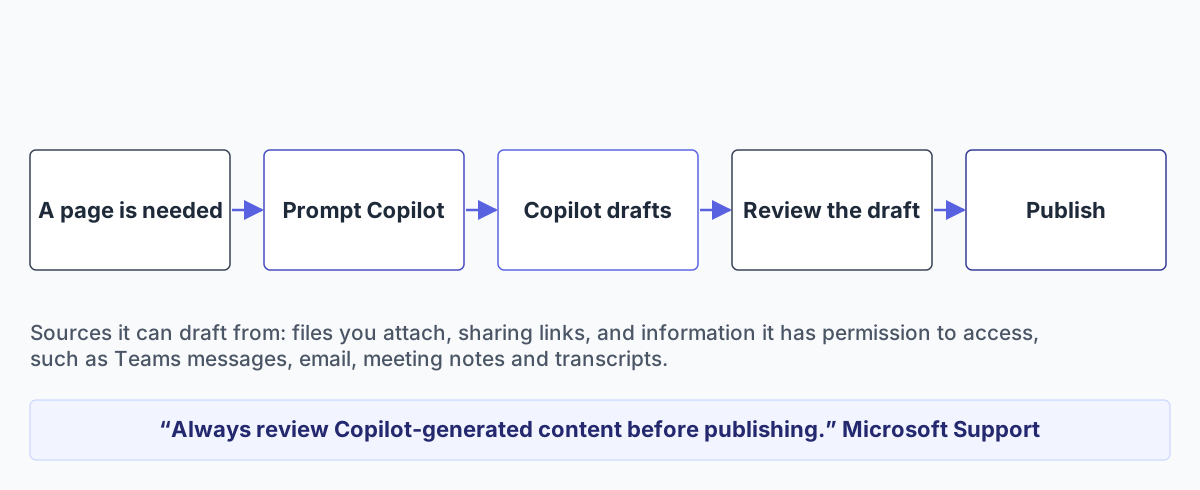
A person starts it, a person publishes it.
The sources it can draft from are broader than SharePoint. According to Create and edit SharePoint pages with Copilot, you can attach files or paste sharing links, and Copilot can also use information it has permission to access, “such as Teams messages, documents, calendars, email, meeting notes, and transcripts.” Microsoft’s example prompts include asking Copilot to make sure the project information on a page is up to date.
That is the model. A person decides a page is needed, or that a page needs updating, asks Copilot to do it, reviews the result and publishes it. Copilot speeds up the writing and can pull from where the conversations happened. The decision about what to write and when, and the responsibility for whether it is right, stay with the author.
“Improve this site”: what it checks
The feature most relevant to knowledge base maintenance is Improve this site. According to Microsoft Support, it looks for three things:
- Inactive pages: pages that haven’t been viewed or edited for a period you choose. It recommends demoting them, which deprioritizes them in search and agent results.
- Content gaps: it “analyzes search behavior to identify terms that users are searching for and not finding relevant results,” and recommends creating content to fill them.
- Broken links: it detects when users hit 404 errors and suggests replacements.
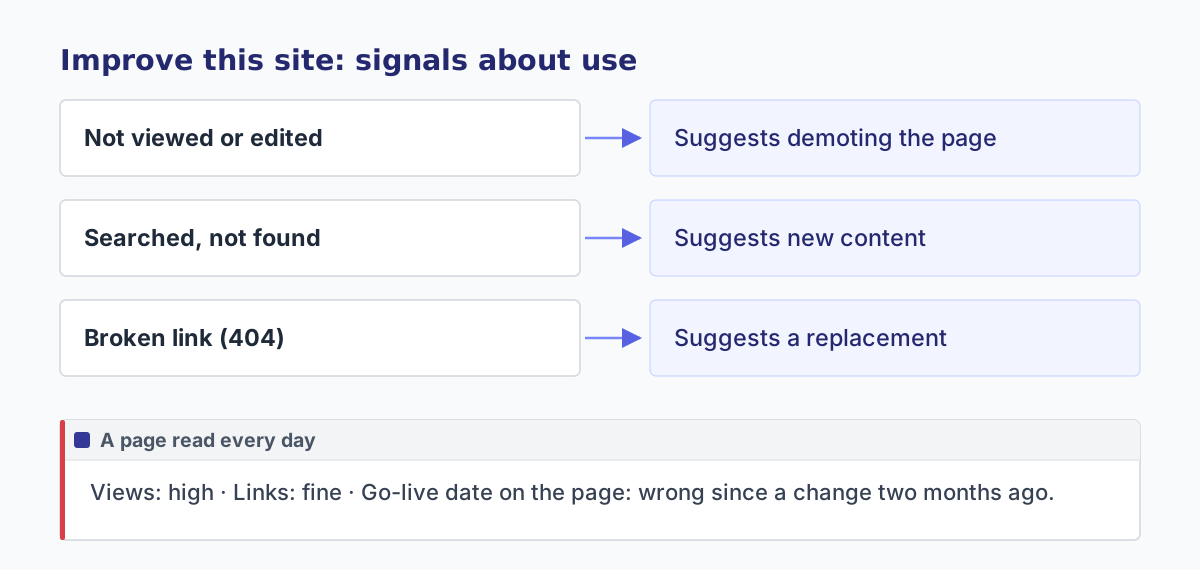
Signals about use, not about whether the content is still right.
All three are suggestions. Nothing is demoted or created until someone acts on it.
These are useful signals, and every knowledge base has pages that deserve to be demoted. But notice what they measure: views, edits, searches and broken links. They are signals about use. A page that is read every day and carries a deadline that moved two months ago looks perfectly healthy by every one of them.
What Microsoft does not describe
Reading the current documentation carefully, one thing is absent. This is not a claim that Copilot in SharePoint cannot do it; it is that Microsoft does not describe it.
Raising a contradiction on its own. The Improve this site page mentions accuracy only as a general goal, keeping sites “accurate, relevant, and Copilot-ready.” Its signals are about use. And the page-creation documentation describes a person asking Copilot to draft or update a page. Neither describes Copilot noticing, without being asked, that a new message contradicts a page that is already published, and raising it with the team.
A newer feature comes closest. SharePoint Knowledge Base, in preview for Microsoft’s Frontier program, has Copilot in SharePoint build pages from sources people link to, such as files, emails and meetings. During the preview, Knowledge Base is available only to users enrolled in Frontier and enabled for usage-based billing. Its how-to page tells people: “Review the proposed changes, conflicts, and source links before you accept them.” It also says of the health check, which looks for broken links and incomplete source references: “It doesn’t verify accuracy.” And every step starts with a request. The Knowledge Base setup page says: “There are no automated or scheduled updates.”
That is the gap that matters for a knowledge base. Copilot can update a page well, once someone knows the page is wrong. The hard part is knowing: the decision that makes a page wrong usually arrives in a meeting, a chat or an email, and the person who would update the page is often not the person who heard it.
What admins need to know
If you manage a tenant, a few settings and one recent date matter.
- Licensing: users need an active Microsoft 365 Copilot license. Advanced work needs a spending policy for Copilot Credits, set up in the Microsoft 365 admin center under Copilot and Cost management.
- Availability controls have changed. The preview PowerShell controls (
KnowledgeAgentScope,KnowledgeAgentSelectedSitesList,KnowledgeAgentSelectedSitesListOperation) are being retired. Microsoft says existing settings were honored until November 1, 2026; from then on, availability is managed with Site AI settings and Restricted Content Discovery. - Restricted Content Discovery wins. If it is enabled on a site, Copilot in SharePoint and AI actions do not appear there, regardless of other settings.
- Site owners have their own panel, under Settings and Site AI, to choose which agent opens from the header, hide the Copilot button for visitors, and enable advanced document processing.
- Government and sovereign clouds: Microsoft states it is not currently supported in GCC, GCC High, DoD, air-gapped environments or Microsoft 365 operated by 21Vianet.
All of this is from the Microsoft Learn setup page, which Microsoft updates regularly. Check it again before you change tenant settings.
Where it fits in keeping a knowledge base current
Think of a knowledge base as three jobs:
- Structure: sites, pages, lists, navigation, metadata.
- Writing: turning what the company knows into pages.
- Keeping it true: noticing when something new contradicts something already written, then deciding which version holds and updating the page.
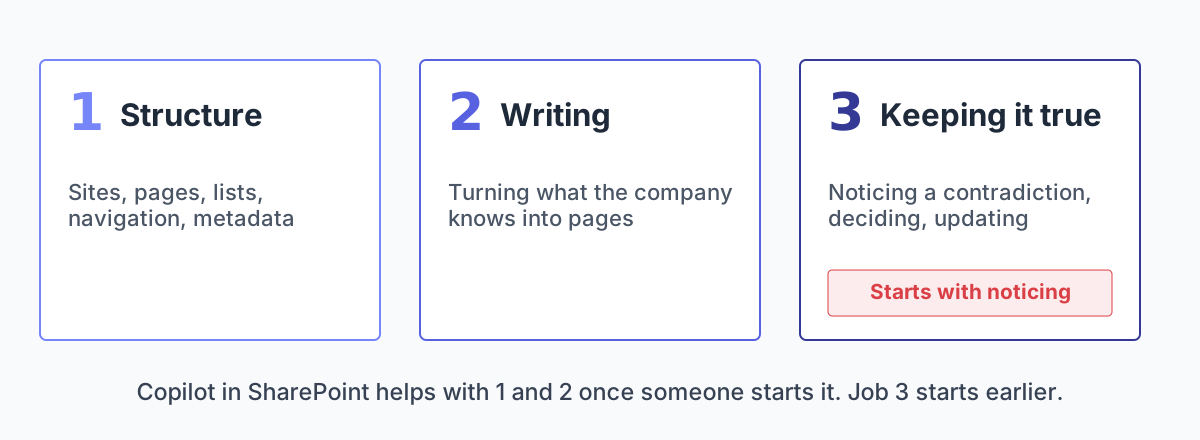
The third job starts before anyone opens a page.
Copilot in SharePoint helps a great deal with the first two. Once someone knows a page is wrong, it helps with the update too. The third job starts earlier, with noticing that something changed. In most companies that is nobody’s job, and it is where knowledge bases quietly fail. We wrote about that failure in When Your Knowledge Base Contradicts Itself.
Where SecondBrain 365 fits alongside it
SecondBrain 365 works on the noticing part of that third job, and on the writing. It is an AI agent with its own company email inside your Microsoft 365. You put it in copy, and the project knowledge base writes itself as pages on SharePoint. When two pieces of content contradict each other, it posts on Teams so your team decides which one holds. Turn on the approval step, and nothing enters the knowledge base until a person says yes.
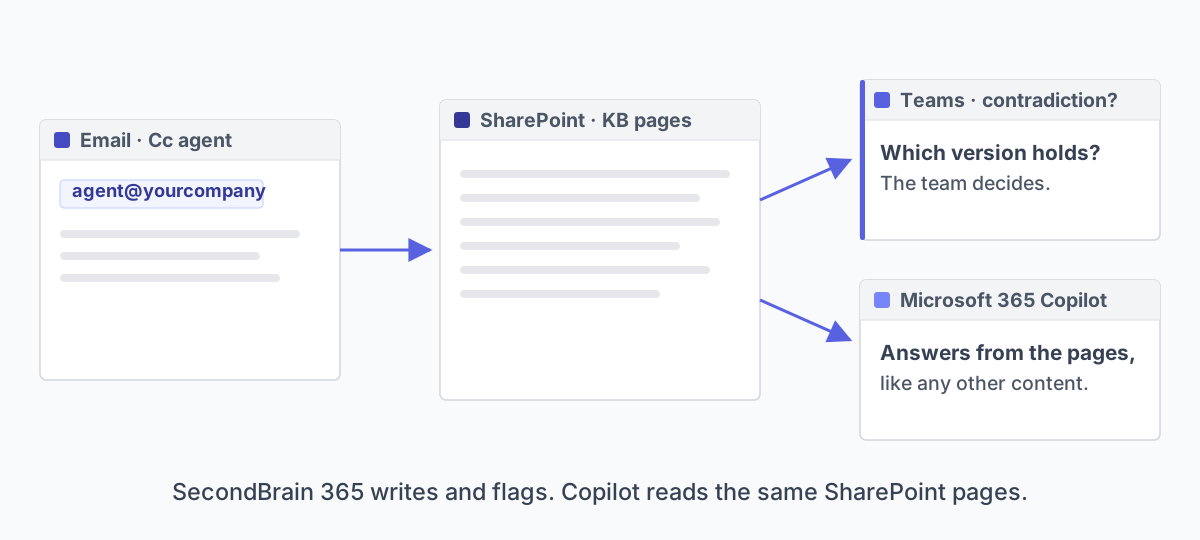
Two tools on the same SharePoint pages.
The two are not alternatives. The pages SecondBrain 365 writes live in SharePoint, so Microsoft 365 Copilot reads them like any other content in your tenant. If you want to see who does which job in a SharePoint knowledge base in more detail, read our guide to SharePoint knowledge base software.
Questions to ask before you roll it out
Whatever you decide about tools, these five questions will tell you where the gaps are in your own knowledge base:
- Who decides that a page needs to exist? If the answer is “whoever has time,” expect gaps.
- Where does the latest version of a decision live? If it is usually in a meeting or a chat, your pages will lag behind it.
- What happens when two pages disagree? If the answer is “someone eventually notices,” you already have contradictions you do not know about.
- Who reviews AI-drafted content before it is published? Microsoft says to always review it. Make sure that review has an owner.
- Which users need Copilot Credits? Decide before the first large reorganization, not after the first warning.
Frequently asked questions
Is Copilot in SharePoint the same as the Knowledge Agent? It is the feature that was in preview under that name. Microsoft now calls it Copilot in SharePoint; some prerequisites and the PowerShell parameters still use the preview name.
Is it generally available? Microsoft states that general availability began rolling out on September 30, 2026, and that capabilities may appear in tenants after that date as the rollout progresses.
Do we need a Copilot license? Yes. Users need an active Microsoft 365 Copilot license. Everyday capabilities are included; advanced work at scale uses Copilot Credits through usage-based billing.
Does it replace Viva Topics? Microsoft does not present it as a replacement. Viva Topics was retired on February 22, 2025, and Microsoft recommends SharePoint, Microsoft Search and Copilot for knowledge management. If you still have former topic pages, see our guide on what to do with your Viva Topics content.
Does it detect outdated or contradictory pages? It suggests demoting pages that have not been viewed or edited for a period you choose, and you can ask it to bring a page up to date. Microsoft’s documentation does not describe it raising a contradiction between a page and a newer message without being asked.
Can Copilot read pages written by SecondBrain 365? Yes. The pages live in SharePoint, so Microsoft 365 Copilot reads them like any other content in your tenant.
To see how the two work together on one of your own projects, book a demo.

Giuseppe Marchi