What to Do With Your Viva Topics Content Now
Viva Topics was retired in February 2025, but published pages are still in your tenant. A cleanup checklist to find them, decide what to keep, stop the drift.
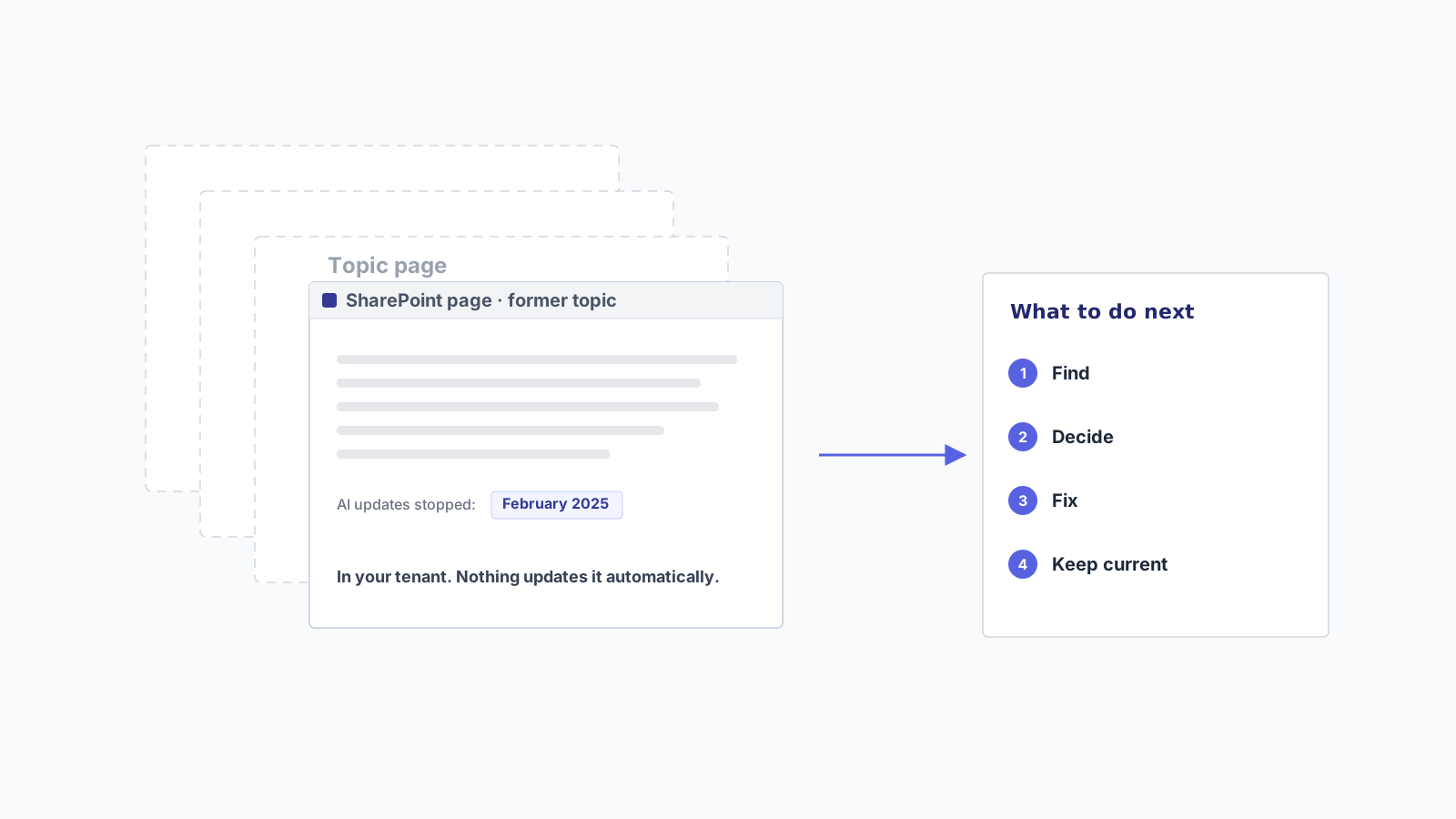
Microsoft retired Viva Topics on February 22, 2025. For most organizations that used it, the retirement itself was quiet. The highlights disappeared from Outlook and SharePoint, the topic cards stopped appearing on hover, and work went on.
What did not disappear is the content. If your knowledge managers published topic pages, those pages are still in your tenant today. They are ordinary SharePoint pages now, nobody is updating them automatically, and every month that passes they describe a company that has changed a little more.
This guide is a cleanup checklist for the people who inherited that content: Microsoft 365 admins, knowledge managers, and whoever is now asked “do we still have the Topics pages?”. For what could replace Topics, see our Viva Topics alternative page. This checklist covers what the retirement actually changed, how to find what is left, how to decide what to keep, and how to stop the pages you keep from going stale again.
What the retirement changed, in one table
Microsoft documented the changes in two pages, Changes coming to Topics and the Topics changes FAQ. They are the primary sources for what happened. Here is what they say about the changes that matter for this cleanup; the item-by-item list is on our site.
| What you had | What happened at retirement |
|---|---|
| Topic pages published by people | Became standard SharePoint pages. Still editable, no longer updated by AI |
| Topic pages generated entirely by AI | No longer available |
| AI-suggested content never touched by a user | Removed |
| Topic Center | Converted into a normal SharePoint site |
| Highlights and hover cards in Outlook, SharePoint, Search and Teams | No longer available |
| Links to topic pages that users inserted manually | The link to the SharePoint page persists |
Two lines in that table matter more than the others. The pages people published are still there. And Microsoft said they “will no longer be automatically enhanced by the AI and machine learning algorithms of Viva Topics.” Whatever kept them current before now has to come from somewhere else.
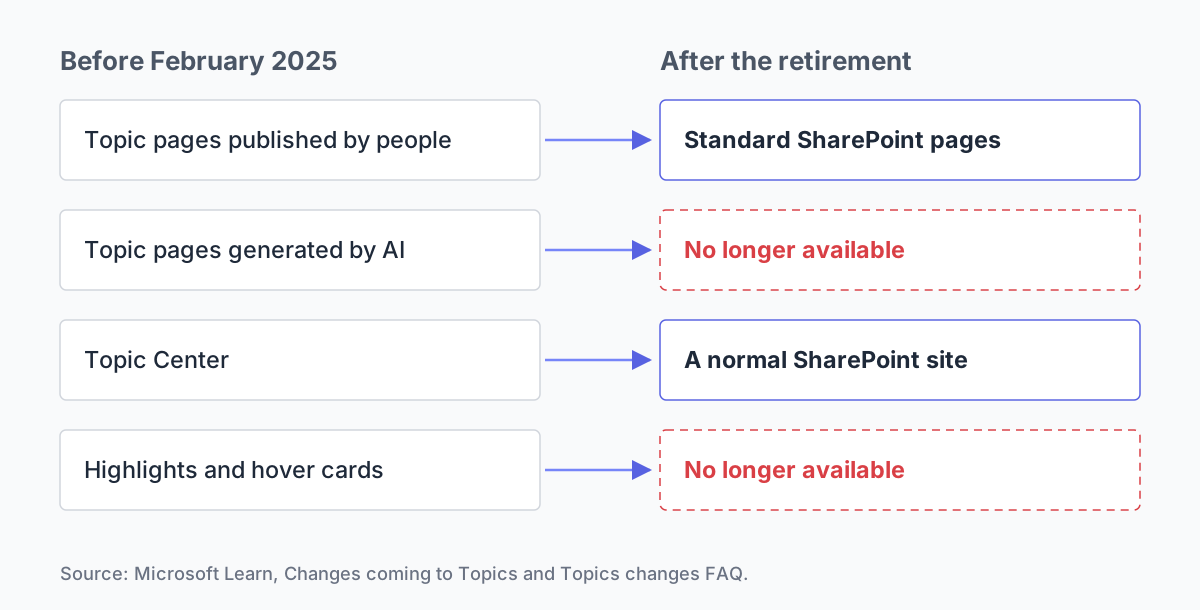
The four changes that matter most, from Microsoft Learn.
Why Microsoft retired it, and what it recommended instead
The FAQ gives the reason plainly: Microsoft is focusing on “building AI-powered knowledge experiences in Copilot.” Its recommendation for organizations going forward is to “use SharePoint to publish and organize knowledge that can be discovered via Microsoft Search and leveraged via Microsoft Copilot across Microsoft 365.”
Microsoft’s retirement pages do not name a direct successor. One line on Microsoft’s “Changes coming to Topics” page matters for this cleanup: if you already use Copilot, your SharePoint pages “are already indexed and will be used in responding to users’ questions.”
That last sentence is the reason this guide exists. If Copilot answers from your former topic pages, then whatever is wrong on those pages is now being repeated in Copilot’s answers.
Step 1: find what is left
Start with the former Topic Center. It is now a normal SharePoint site. Open its Site Pages library: according to Microsoft, only the topics that appear in that library remained after retirement.
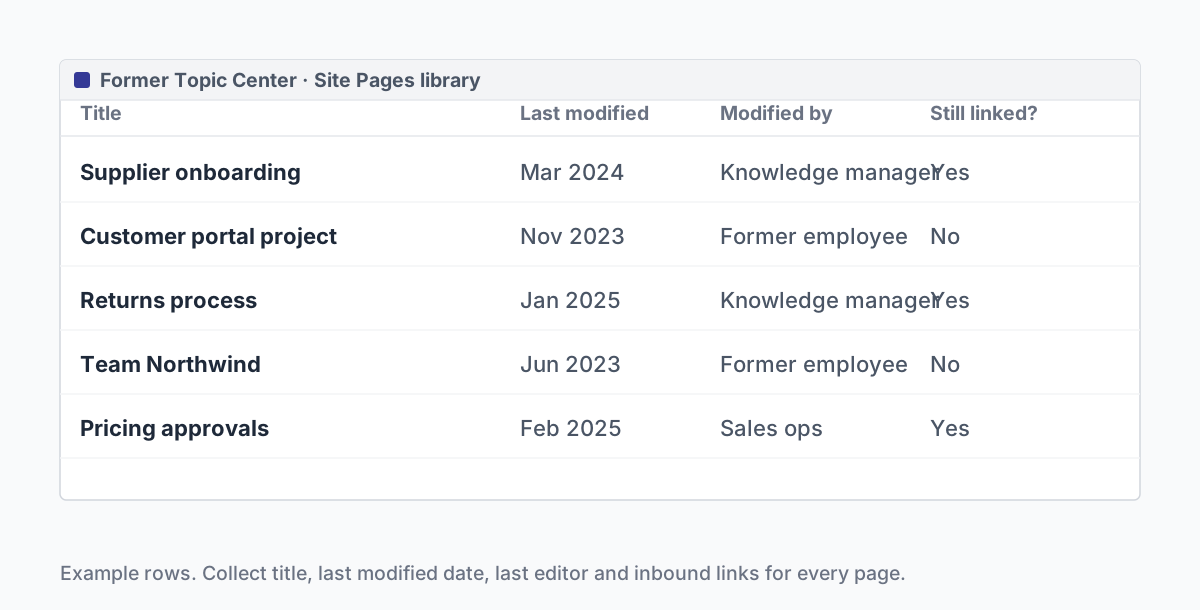
Example rows: four facts to collect for every page.
For each page, collect four things in a simple list:
- Title and URL.
- Last modified date, from the library view or the page’s version history.
- Who last edited it, also from version history.
- Whether anyone still links to it. Manually inserted links survived the retirement, so some of these pages may still be reachable from project sites or news posts.
You will probably find three groups. Pages a knowledge manager curated carefully. Pages someone published quickly to confirm an AI suggestion and never touched again. And pages that describe projects, teams or products that no longer exist.
Step 2: decide what to keep
Not every former topic page deserves a second life. A useful test is to ask, for each page, whether someone would look for this information today and whether the page would give them the right answer.
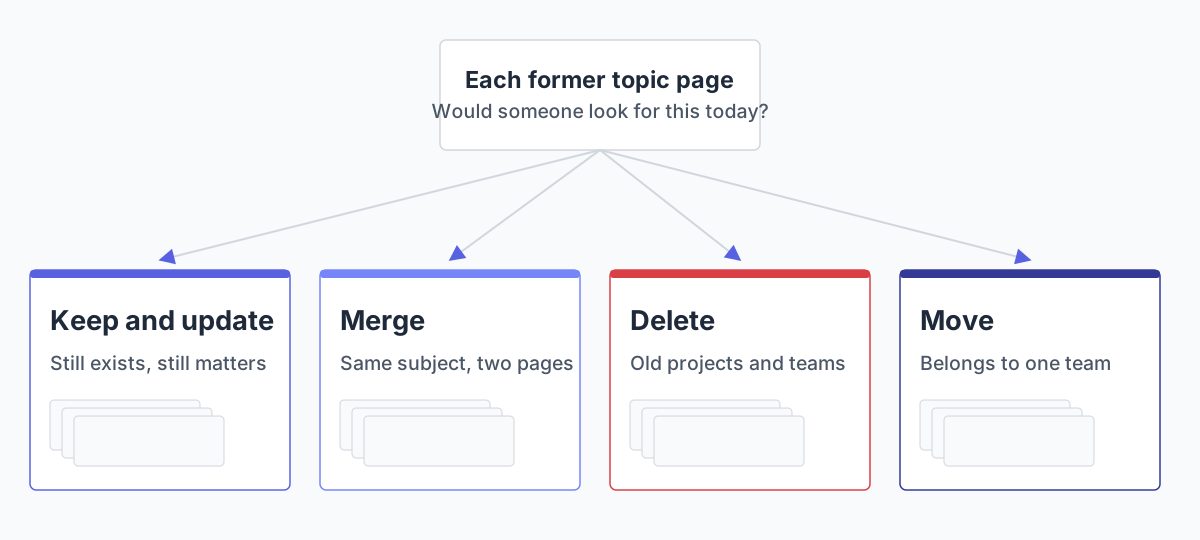
One question decides where each page goes.
- Keep and update pages about things that still exist and still matter: a product line, a recurring process, a long-running client relationship.
- Merge pages that cover the same subject from different angles. Two pages about the same thing are where contradictions start.
- Delete pages about finished projects, former teams and retired products. The FAQ is explicit that users with the right permissions can delete an inaccurate or outdated page from the Site Pages library of the Topic Center site.
- Move pages that belong to a specific team into that team’s own site, where the people who know the subject will see them.
Do not keep a page just because it was expensive to create. A page that is wrong is worse than no page, because people act on it.
Step 3: fix what readers will actually see
With the highlights gone, people reach these pages through search results, Copilot answers, and the links added by hand.
That changes your priorities. Check that the pages you keep:
- have titles people would actually type into search, not internal topic names;
- start with a short, current summary, so that anyone who lands on the page sees the current state first;
- carry a visible “last reviewed” note, so readers can judge how much to trust them;
- are linked from the places people work, such as the relevant project or team site.
Step 4: decide who keeps them current
This is the step most migrations skip, and it is the one that decides whether you are doing this exercise again in a year.
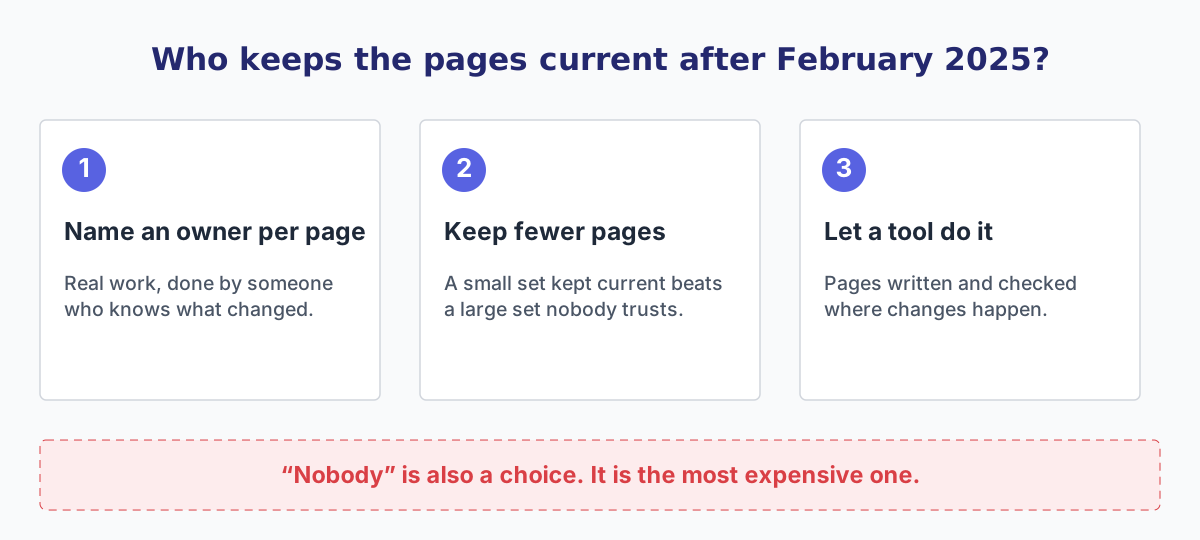
Write the decision down, whichever it is.
While Topics was active, its AI kept enhancing topic pages in the background. That work stopped in February 2025. If nobody picks it up, the pages you just cleaned will drift again, one changed decision at a time.
There are three honest options:
- Name an owner per page and accept that it is real work, done by someone senior enough to know what changed.
- Keep fewer pages. A small set of well-maintained pages beats a large set nobody trusts.
- Use a tool that writes and checks pages from the conversations where changes actually happen.
Whichever you choose, write the decision down. “Nobody” is also a choice; it is just the most expensive one.
Where Copilot in SharePoint fits
If your organization has Microsoft 365 Copilot licenses, you may also have Copilot in SharePoint. General availability began rolling out on September 30, 2026, so it may still be arriving in your tenant; admins can limit where it appears, and Microsoft states it is not currently supported in government and sovereign clouds such as GCC or 21Vianet. Its everyday capabilities are included with the Microsoft 365 Copilot license: creating and editing pages from natural-language prompts, organizing content and answering questions about a site.
It can help the person cleaning up former topic pages: drafting a summary, rewriting a page, or bringing a page up to date when asked. Microsoft does not present it as the successor to Viva Topics. Our guide to SharePoint knowledge base software looks at who does which job in a SharePoint knowledge base.
The gap Topics left
According to Microsoft’s FAQ, the content Topics suggested came from “files, sites, and pages” that users had access to: content that had already been written down somewhere.
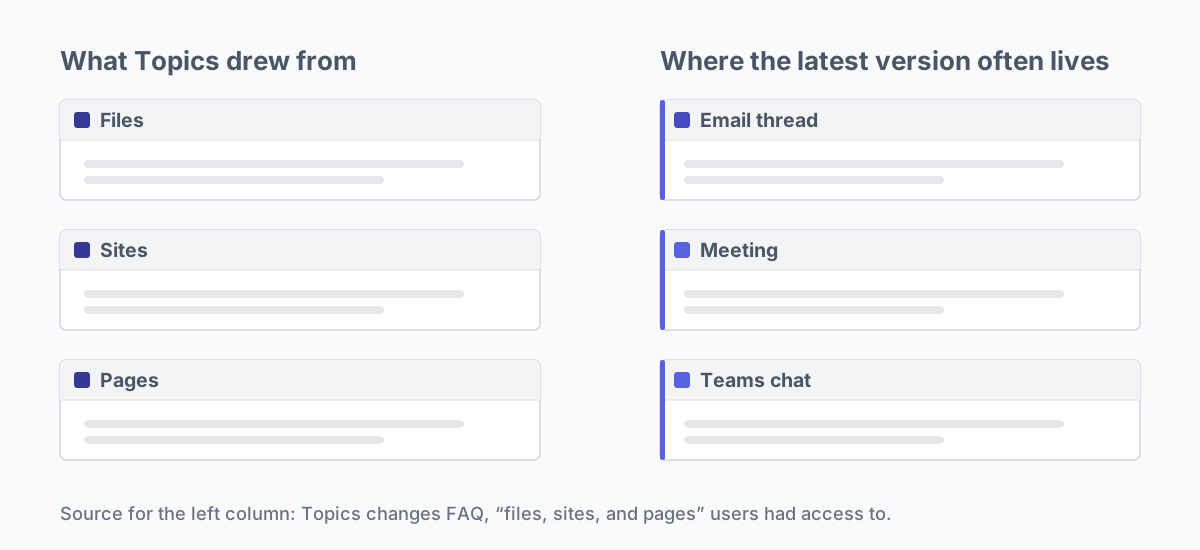
What Topics drew from, and where the newest version of a fact often lives first.
The most current version of a fact, though, often lives in an email thread or a meeting before it reaches any file or page. The pages, former topic pages included, are one more source that falls behind.
SecondBrain 365 starts from the conversation instead of the page. It is an AI agent with its own company email inside your Microsoft 365: you put it in copy, and the project knowledge base writes itself as pages on SharePoint. When two pieces of content contradict each other, it posts on Teams so your team decides which one holds. Everything it writes stays in your tenant, and because the pages live in SharePoint, Microsoft 365 Copilot reads them like any other content. If you are deciding what replaces the work Topics used to do, our Viva Topics alternative guide compares the options.
Frequently asked questions
When was Viva Topics retired? On February 22, 2025, according to Microsoft Learn.
Are our topic pages gone? Pages that people published are still there as standard SharePoint pages, in the site that used to be the Topic Center. Pages generated entirely by AI, and AI-suggested content no one touched, were removed.
Do the old pages still update themselves? No. Microsoft states that they are no longer enhanced by the Viva Topics AI. They change only when someone edits them.
Will Copilot use our old topic pages? If you use Microsoft 365 Copilot, Microsoft says your SharePoint pages are already indexed and used to answer questions. That is why it is worth cleaning them: outdated pages become outdated answers.
Did the retirement change who can see the pages? No. Microsoft states that permissions were not affected. Published pages follow the permissions of the former Topic Center site and of each page.
Is there an official replacement for Viva Topics? Microsoft’s retirement pages do not name one. They recommend SharePoint to publish and organize knowledge, Microsoft Search to find it and Copilot to use it.
If you want to see how an agent that writes and checks pages would fit with the pages you already have, book a demo.

Giuseppe Marchi